IOS/FTPManager
FTPManager
- We will be using FTPManager since it seems to be the most used app at the time of writting this post
- Install the app from the IOS store and open it
- You should see the following main screen
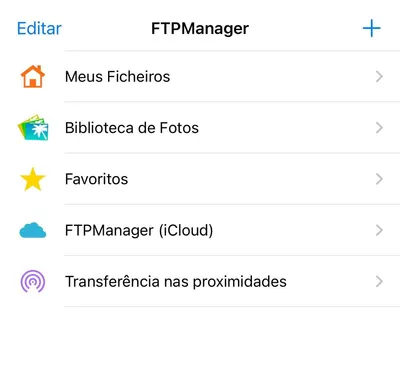
- Click the + button to add a new connection, It’s an FTP connection you need to create
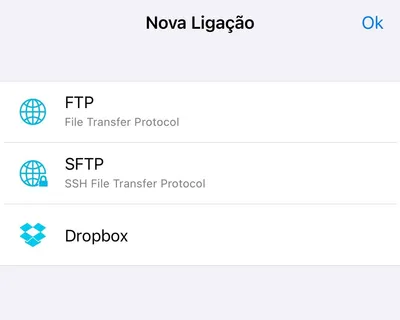
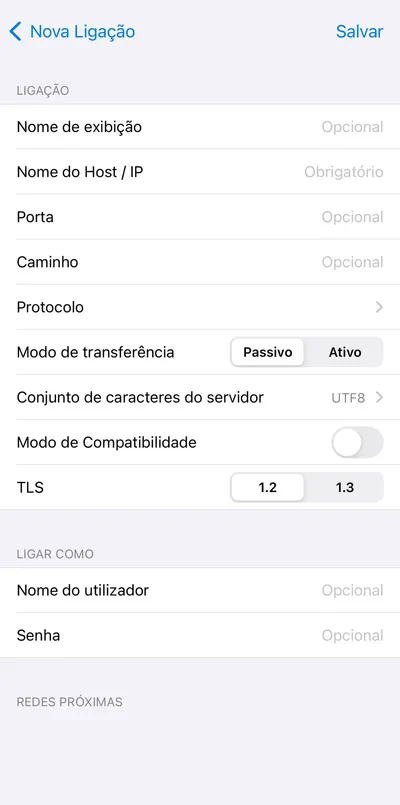
- Next you will be presented with the connection details screen where you need to introduce the data
RFTPS gives you as follows:
- “Nome de exibição”: The name of the connection that will appear in the home screen
- “Nome do Host / IP”: Host
- “Porta”: Port
- “Nome do utilizador”: Username
- “Senha”: Password
- Leave the rest as is
- Click “Salvar”: Save
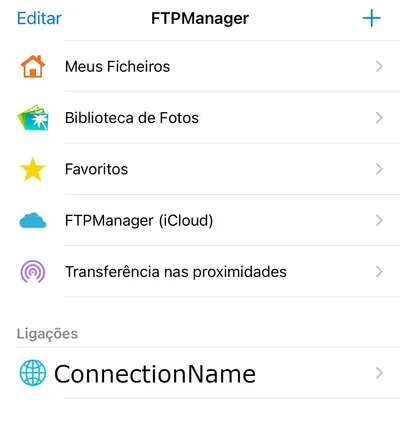
- After that you should see your connection at the bottom
- Now search for the files you want to copy on your device trough FTP Manager (go to “Meus Ficheiros”/“My files”), copy them
- Go to the home page choose your connection
- Then paste/save the images there